
Does Converting JPG to PNG Improve Image Quality?
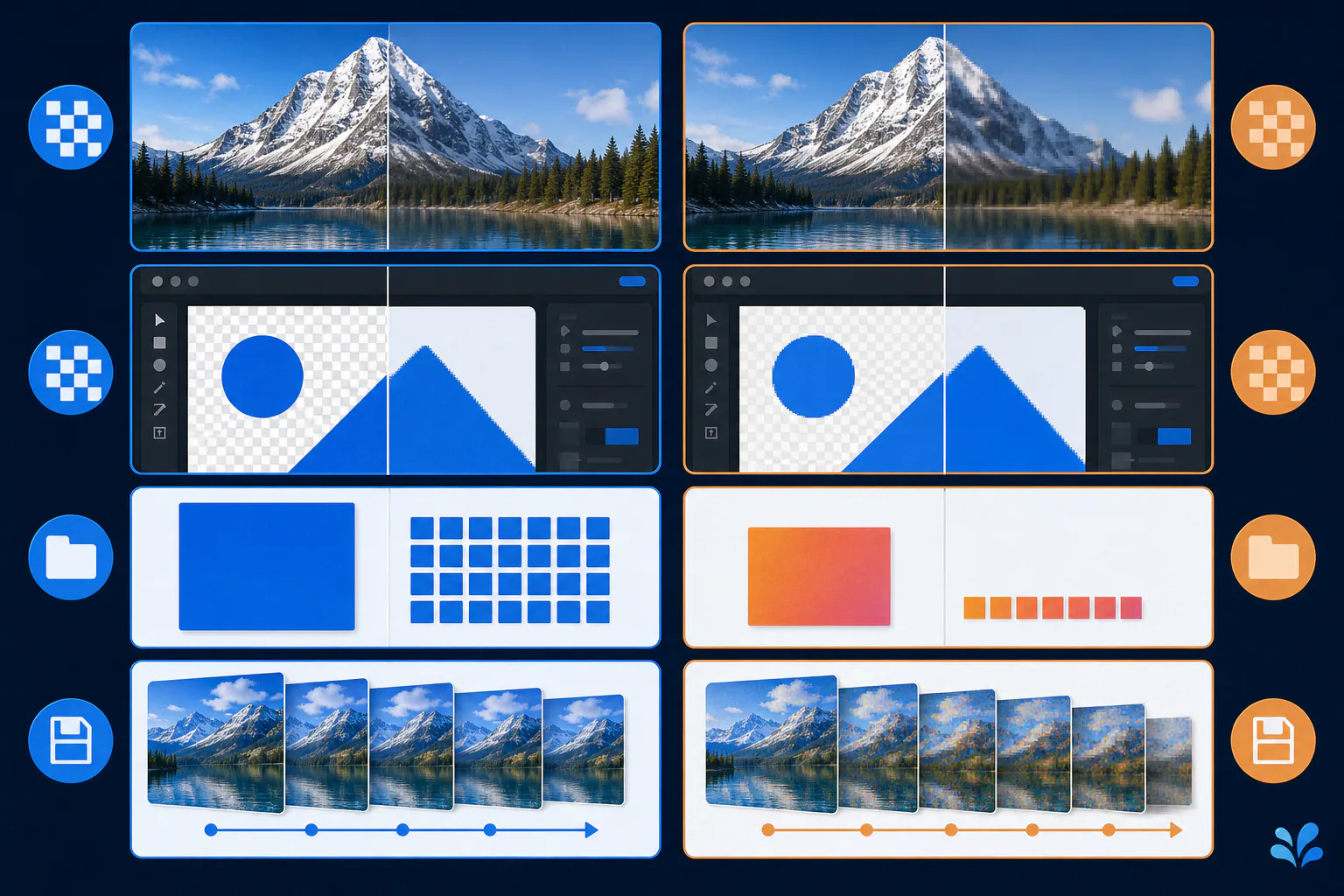
No. Converting a JPG to PNG does not restore detail or remove compression artifacts that are already in the JPG. The converter first decodes the JPEG into pixels, then stores those pixels in a lossless PNG. The new file can preserve that decoded state without another lossy encode, but it cannot reconstruct the original scene. Use the conversion when you need PNG compatibility, lossless future saves, or a workflow that adds transparency—not as a quality enhancement.
The short answer
No. Converting a JPG to PNG does not restore detail or remove compression artifacts that are already in the JPG. The converter first decodes the JPEG into pixels, then stores those pixels in a lossless PNG. The new file can preserve that decoded state without another lossy encode, but it cannot reconstruct the original scene. Use the conversion when you need PNG compatibility, lossless future saves, or a workflow that adds transparency—not as a quality enhancement.
Why the missing detail cannot come back
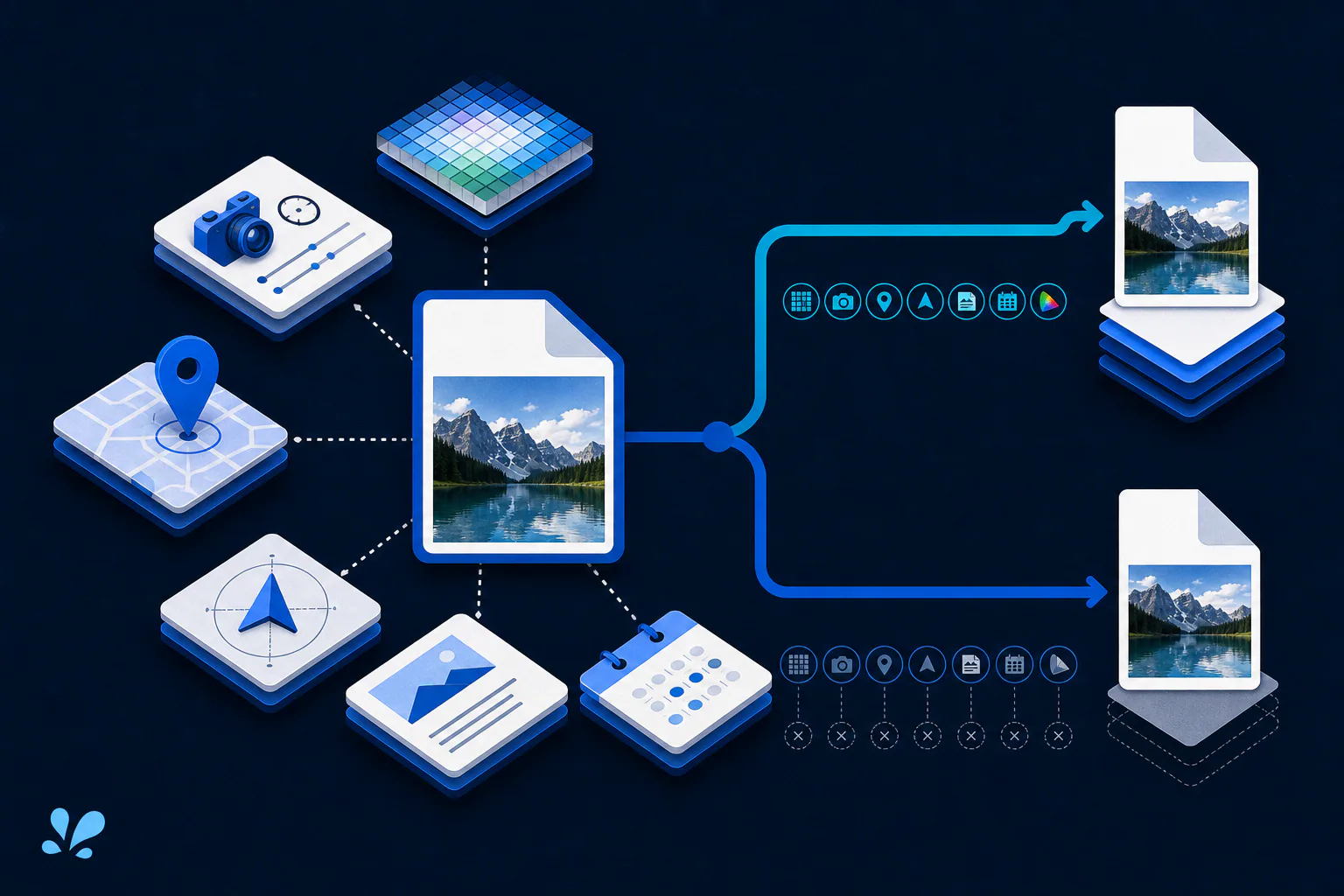
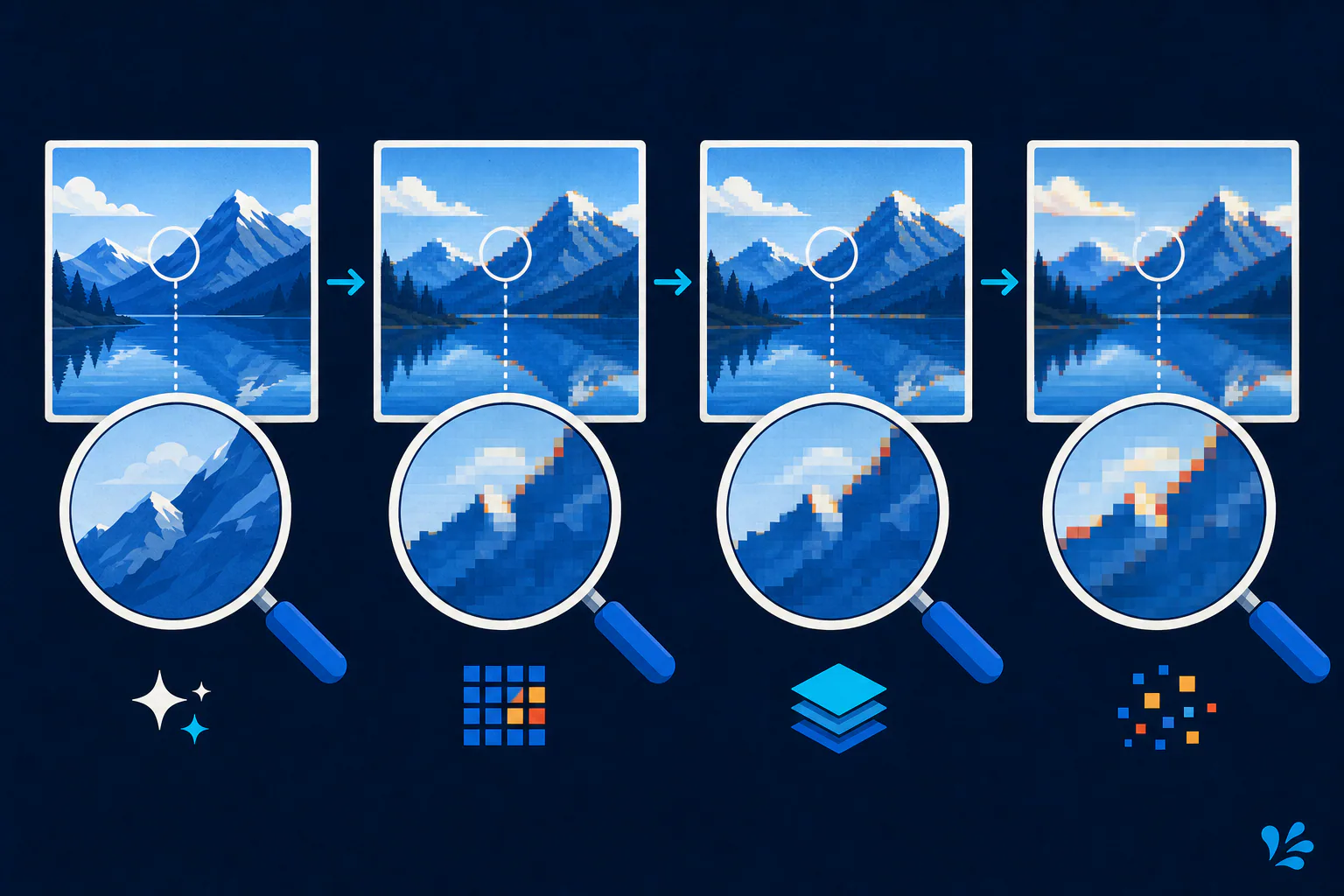
A lossy JPEG encoder represents the source with fewer bits by discarding or approximating information. When software opens the file, the decoder produces a complete pixel grid, but some values reflect those earlier approximations. PNG can store the resulting grid losslessly; it has no access to the uncompressed camera capture, design file, or pixels that existed before JPEG encoding.
Think of the conversion as copying a printed page with a perfect scanner. The scan can accurately preserve the page you have, including its flaws, but it cannot reveal words erased before printing. Sharpening or AI restoration may create plausible detail, yet that is a separate image-processing operation and is not evidence that conversion recovered the original information.
The container and compression change, not the source history
A proper converter decodes the JPG and writes a PNG datastream. The W3C PNG specification defines lossless filtering and compression for PNG image data, so saving that decoded grid as PNG does not introduce a new round of JPEG-style loss. However, JPEG blocks, ringing, color changes, and blurred edges already visible in the decoded grid become part of the PNG pixels.
The PNG will often be larger because lossless compression must describe the full decoded grid, including complex photographic variation and existing artifacts. A larger number of bytes does not mean more source detail. It only describes a different encoding of the image state available at conversion time.
A controlled demonstration starts with a known lossless master. Export one JPG, convert that JPG to PNG, and compare both decoded images against the master with the same color-management and scaling settings. The JPG-derived PNG should be treated as the second container for the already decoded result, not as a new master. This is a recommended experiment for understanding the process, not a Tool Swim benchmark or a promise of identical output across every decoder.
When converting JPG to PNG is still useful
Conversion can make sense when a system explicitly requires PNG, when you plan to annotate the image and want subsequent lossless saves, or when you need to place the opaque JPEG image into a larger canvas that includes transparent areas. It can also give a predictable lossless intermediate for a toolchain, although keeping the original JPG alongside it avoids confusing the intermediate with the camera master.
- Meet an upload or application requirement that accepts PNG but not JPG.
- Add transparency around the existing image on a larger canvas.
- Prevent another lossy encode while editing from the decoded image you have.
Use the original source when quality is the goal
Return to the RAW capture, camera original, layered design, or highest-quality export if one exists. Resize and export directly from that source. If the only copy is a JPG, avoid repeatedly saving it as JPG, preserve the original unchanged, and make edits on a separate working file.
Judge quality at the final display dimensions. Magnification helps diagnose artifacts, but viewers experience the image at its rendered size. Keep claims modest: without the original reference, nobody can measure how much detail was lost before you received the JPG.
Be careful with apparent improvements caused by software defaults. A viewer may sharpen one preview, scale another with a different filter, or honor color metadata differently. Compare files in the same application at the same zoom and background. If a process adds denoising or sharpening, describe that processing separately from the format conversion.
That separation keeps the conclusion honest: conversion preserves a decoded state, while enhancement algorithms create a new interpretation of it.
Create a local PNG copy while keeping the JPG
Tool Swim, the organizational author of this explanation, offers an image converter that processes the file locally in your browser without uploading it. Convert a copy when PNG suits the next step, then retain the original JPG and label the new file clearly so nobody mistakes it for a restored master.
Keep reading
Primary sources
- W3C: Portable Network Graphics (PNG) Specification, Third Edition
- JPEG Committee: Workplan and specifications of JPEG 1
- MDN Web Docs: Image file type and format guide
Tool Swim is the organizational author and publisher of this guide. We cite primary specifications and platform documentation where they clarify behavior, and update the article when the guidance changes.